Over time, Windows 11 PC starts slowing down, showing errors, or behaving unpredictably, which may make your experience frustrating. You may encounter issues like frequent crashes, system freezes, malware infections, or failed updates.
In most of these issues, resetting your device can be the best and most effective solution. However, resetting comes with data loss means all your important files, documents, and installed apps get deleted.
The good news is that Windows offers several built-in utilities that you can use to reset your Windows 11 PC without deleting stored files. This article explains everything you need to know about how to reset Windows 11 PC without losing data.
Just keep reading this article to learn what resetting actually does, preparation steps, multiple reset methods, common mistakes to avoid, and what if data loss happens. Let’s get started!
What Does Resetting Windows 11 PC Mean?
Windows 11 built-in ‘Reset This PC’ feature allows you to reinstall your device’s operating system, either by:
- Keeping your personal files, or
- Remove everything, including files, apps, and settings
When you select the “Keep my files” option while resetting, Windows removes all the installed programs and resets system settings, but keeps your personal data stored in user folders intact. It won’t delete your personal files such as Documents, Pictures, Videos, Desktop, and Downloads.
This makes resetting a powerful troubleshooting tool without the risk of total data loss—provided it is done correctly.
When Should You Go For Windows 11 Reset?
It is often recommended to reset your Windows 11 PC only in certain situations, such as:
- Very Slow Performance: If your PC performance is degrading due to accumulated junk files, background apps, or system corruption, a reset can significantly improve performance.
- Windows Update Failures: Repeated Windows update errors or failed feature updates often indicate corrupted system files that require a system reset.
- Corrupted System Files: If SFC or DISM fail to repair corrupted system files on your PC, a system reset becomes helpful.
- Preparing for a Fresh Start: If you’re planning to start your PC as a new one, a reset (with “Keep my files”) can be helpful.
- Software Conflicts: Installing incompatible or poorly coded software can cause conflicts. If uninstalling programs fails to fix the issue, you can reset the system.
Pre-requisites Before You Reset Windows 11
Even though Windows 11’s “Keep my files” option prevents the files and folders stored on your PC from deletion, preparation is critical to avoid unexpected data loss. To prevent your file from deletion:
Back Up Important Data
Create multiple backups of your important files, either using Windows’ built-in File History or Previous Versions backups utility. You can even sync your PC with cloud backups such as OneDrive, Google Drive, Dropbox, etc. These backups may include:
- Work documents
- Personal photos and videos
- Important downloads
- Browser bookmarks and saved passwords
Maintain Stable Power Supply
If you’re using a laptop, keep it fully charged and ensure it is plugged in during the reset process. Interruptions during reset can cause serious system issues.
How do I Reset Windows 11 PC without Data Loss?
In this section, we’ll explore different methods to reset Windows 11 PC without losing personal data:
Method 01: Reset Using the “Reset This PC” (Keep My Files) Option
The latest Windows 11 OS comes with a built-in “Keep my files” option that allows you to reset your PC safely. This method allows you to reinstall Windows OS while preserving personal data, making it the most reliable and user-friendly reset option. All you have to do is:
- Press the Windows + S keys and type Reset this PC in the search box.
- Go to Recovery from the left pane and click the Reset PC button located under the Reset this PC.
- Now, choose the Keep my files option when asked.
- From the next dialogue box, select how you want to reinstall Windows:
- Cloud download (downloads a fresh copy from Microsoft)
- Local reinstall (uses existing system files)
- From the Additional settings dialogue box, click Next to continue.
- Lastly, click Reset and wait till the resetting process completes.
Note: Your PC will restart multiple times during the process. Once completed, Windows 11 will load with your personal files intact.
Method 02: Reset Windows 11 Using Windows Recovery Environment (WinRE)
You can also use the WinRE option to reset your PC. It allows you to troubleshoot and reset the system even when your PC isn’t starting properly. The reset process remains mostly the same as above, but it is helpful if standard settings are inaccessible. Here’s how to reset your PC:
- Launch the Settings app, go to System > Recovery, then select Advanced startup and click the Restart now
- After restart, choose Troubleshoot from the recovery screen.
- Click Reset this PC, then choose Keep my files to preserve personal data safely intact.
- Go through on-screen instructions, choose cloud or local reinstall, and wait until the reset is completed successfully.
Additional Tip: How to Recover Data After Windows 11 Reset?
Some unexpected events, like power interruptions, system errors, or corrupted files, lead to data loss even if you’ve selected the “Keep my files” option. Losing files can be frustrating, especially if the deleted file is important.
When you’ve a backup of deleted data, recovering it is quite simple. However, if there’s no backup, you need to use third-party Windows data recovery software like Stellar Data Recovery to restore deleted files.
The Stellar Data Recovery software is specifically designed to retrieve lost, deleted, or inaccessible files from Windows PCs, laptops, and external storage drives. You can use this Windows data recovery software to recover deleted files of various types, including photos, videos, documents, and many more.
Whether your files are deleted due to accidental deletion, system formatting, or reset errors, Stellar Data Recovery provides a reliable solution.
Here’s how to recover deleted files after Windows 11 Reset using Stellar Data Recovery software:
Step 1: Download and install the Stellar Data Recovery software from its official website on a different drive to avoid overwriting lost data.
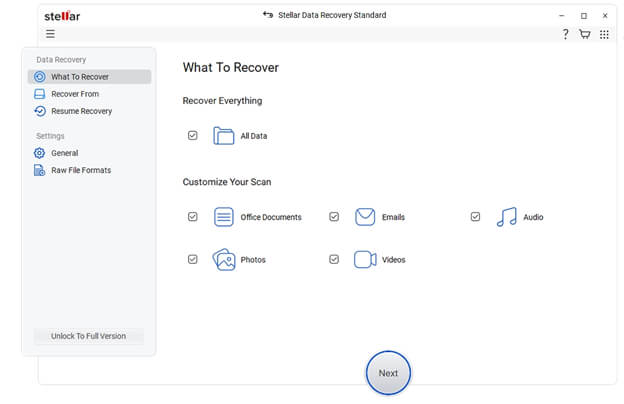
Step 2: Launch the software and from the homepage, choose the types of files you want to recover, such as documents, images, or videos. Click Next to continue.
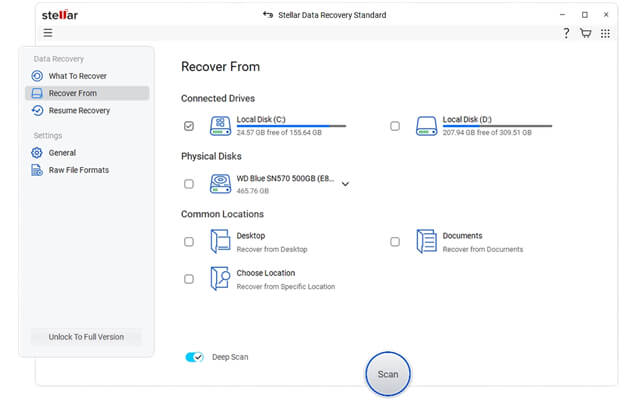
Step 3: Select the storage drive where the deleted file was stored and click Scan to initiate the scan. Stellar will perform a quick scan followed by a deep scan if needed.
Step 4: Once the scan is completed, preview the recoverable files to confirm what can be restored. Click Recover to save recovered data to a secure location on a different drive.
Common Mistakes to Avoid During Windows 11 Reset
Although resetting Windows 11 PC is quite easy, there are certain mistakes that users generally make which complicate the reset process. Avoiding these mistakes from your end keeps the reset simple and smooth:
- Skipping Backup: If you haven’t created backup of your system files, then unexpected issues such as power failures or disk errors can lead to permanent data loss.
- Choosing “Remove everything” by Mistake: Carefully review the reset options before you initiate the process, as selecting “Remove everything” will delete all personal files and applications.
- Interrupting During Reset: Forcing a shutdown or restarting the PC during the reset can corrupt system files, making Windows unstable or unusable.
Final Thoughts
Planning to reset your Windows 11 PC and worried about losing stored files? Don’t worry, go with the aforementioned steps to reset your device without losing data. With the built-in Reset This PC feature, Microsoft has made it easier to fix system issues while keeping personal files intact.
However, if you encounter data loss even after selecting the “Keep my files” option during reset, try third-party Windows data recovery software such as Stellar Data Recovery to restore your lost files with ease.
By choosing the correct reset option, backing up important files, and following the proper steps, you can confidently reset your Windows 11 system and get it running like new again.