
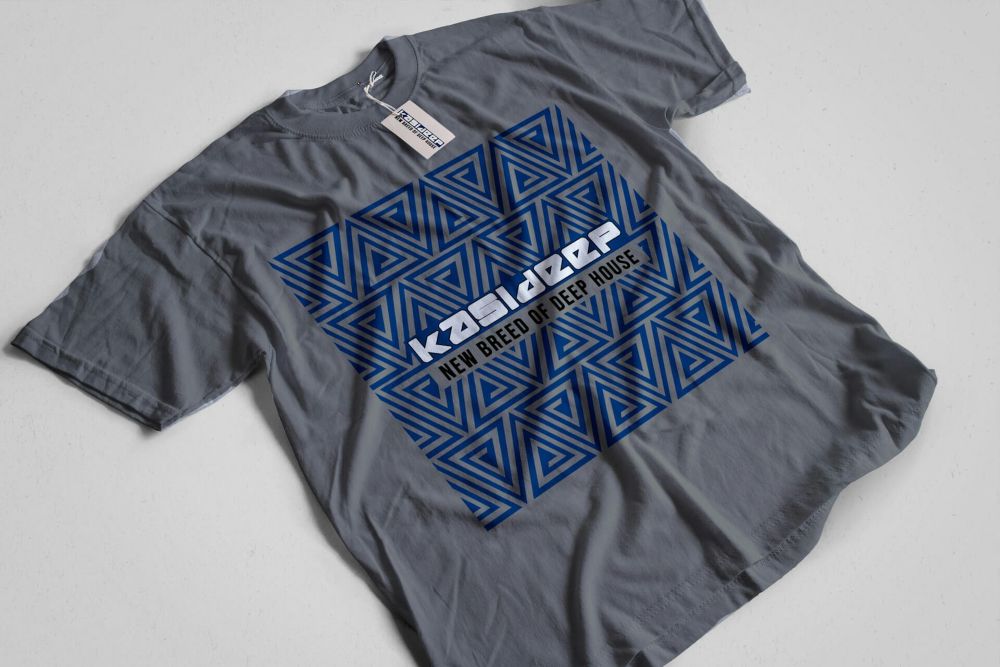
Direct-to-Film (DTF) printing has become a go-to option for businesses looking to create high-quality custom designs on apparel, textiles, and other materials. However, to maximize the potential of DTF printing, optimizing your workflow is essential.
A well-organized process can not only improve efficiency but also reduce costs and minimize errors. This article will guide you through the steps to streamline your DTF printing workflow, from choosing the right equipment to automating key tasks.
Essential Equipment for DTF Printing Workflow
To optimize your DTF printing process, it all starts with choosing the right equipment. Having the right tools can make a significant difference in how quickly and efficiently you can produce high-quality prints.
Choosing the Right DTF Printer
The printer you select plays a key role in your workflow. The Epson Surecolor G6070 DTF printer is one example of a machine that is known for its speed, accuracy, and high-quality prints. This printer is ideal for businesses that need reliable, fast printing to meet customer demand.
When choosing a DTF printer, look for features such as high print resolution, compatibility with different types of transfer films, and the ability to handle large print jobs. A printer that offers consistent color reproduction and minimizes downtime will help streamline your entire workflow.
Other Key Equipment and Tools
Aside from the printer, other essential equipment includes a heat press machine, transfer films, and adhesive powders. A high-quality heat press ensures that your prints are transferred smoothly onto fabric with even pressure and heat. Transfer films should be compatible with your printer, and choosing a good adhesive powder is equally important for ensuring your prints last and don’t fade prematurely.
Additionally, you may consider investing in curing ovens or drying stations. These are optional but can significantly speed up the curing process, ensuring that you can move from one step to the next without unnecessary delays.
Setting Up an Efficient Workspace
An organized workspace is a critical factor in optimizing your DTF printing workflow. Properly setting up your printing station will help ensure that everything you need is within arm’s reach and that your work area remains clean and free of clutter.
Organizing Your Printing Area
One of the first things to consider is the layout of your workspace. Ensure that the DTF printer, heat press, and curing station are placed in a way that minimizes unnecessary movement. Having designated areas for each task will save time and reduce the risk of errors. You want to be able to move from one step of the process to the next with as little delay as possible.
Additionally, organizing materials such as transfer films, powders, and garments is vital. Store everything in clearly labeled containers or bins so you can access them quickly without having to search. Keeping the printing area clean will also help prevent debris or dust from interfering with the printing process.
Workspace Layout Tips
To further enhance workflow efficiency, consider grouping tools and materials by their function. For example, place the transfer films and inks close to the printer. Have the heat press and curing station within easy reach of your transfer films, so the process flows naturally from one station to the next. If you’re working with high-volume orders, setting up a few stations where jobs can be prepped or finished at the same time can drastically reduce turnaround time.
Streamlining the DTF Printing Process
Once your equipment is set up and your workspace is organized, it’s time to optimize the printing process itself. The more efficiently you can handle each step, the faster you can produce high-quality prints and satisfy customer demand.
Preparing and Printing Designs Efficiently
The design preparation stage is one area where you can optimize your workflow. Ensure your design software is configured to create print-ready designs. Programs like Adobe Illustrator or CorelDRAW are popular choices, as they allow for precise design work that is suitable for DTF printing. Set the resolution to at least 300 DPI to ensure sharp, clean prints.
Also, when preparing your files, be sure to reverse the design, as the print will need to be mirrored to ensure it transfers correctly. Save your designs in PNG or TIFF file formats for the best print results.
Optimizing the Print Settings
Once the design is ready, it’s time to adjust your DTF printer settings. The printer should be calibrated to produce consistent and vibrant colors. Make sure to check the settings for ink type, media size, and print speed to avoid wasting ink or time. With the Epson Surecolor G6070 DTF printer, the right calibration can make a significant difference in print quality and speed.
Printing in batches can also help improve efficiency, especially for large orders. If you have multiple designs to print, consider printing them all in one go to save time on setup.
Efficient Powder Application and Curing
Once the design is printed, applying the adhesive powder efficiently is key. Apply the powder quickly and evenly, shaking off any excess to avoid clumping or uneven transfers. You may want to invest in an automatic powder shaker to speed up this process.
For curing, using a dedicated curing oven or dryer will reduce the amount of time spent waiting for prints to dry. This will allow you to quickly move on to the next step without having to pause for long drying periods.
Automating and Integrating Workflow for Maximum Efficiency
To take your DTF printing workflow to the next level, automation is the key. While it requires an upfront investment, automated tools and processes can save you time and effort in the long run.
Automation in DTF Printing
Automating certain parts of the process, like the application of adhesive powder or curing, can drastically reduce labor and speed up production. There are several automated powder application machines available that will coat your printed transfer film quickly and evenly. Similarly, automated curing stations can speed up the drying process, allowing for faster job completion.
You can also look into using print management software that integrates with your DTF printer. These tools can automate parts of the design, print, and curing process, allowing for smoother operations and fewer manual interventions.
Integrating DTF with Order Management Software
Integrating your DTF printing setup with order management and inventory software can significantly improve workflow efficiency. It allows you to automatically track orders, assign jobs to the printing process, and manage inventory. This integration eliminates the need for manual tracking, ensuring that jobs are completed on time and helping prevent mistakes or delays.
Troubleshooting and Reducing Downtime
Even with a streamlined workflow, issues can arise. Being able to identify and solve problems quickly will reduce downtime and keep your operation running smoothly.
Identifying and Fixing Common Printing Issues
Common printing issues such as faded prints, ink clogs, or incorrect transfers can disrupt your workflow. Regular maintenance and cleaning of your printer’s print heads will help prevent ink clogs. If the print quality is poor, double-check the resolution of your designs and adjust the print settings accordingly.
Maintaining Consistent Print Quality
To ensure consistency, perform routine quality checks on prints. Look for issues such as fading, ink smudging, or uneven transfers. By catching these problems early, you can quickly fix them and avoid major setbacks later in the process.
Conclusion
Optimizing your DTF printing workflow is essential for improving efficiency, reducing costs, and ensuring high-quality results. By investing in the right equipment, organizing your workspace, streamlining the printing process, and automating key tasks, you can significantly enhance your output and meet customer demands more effectively.
Keep refining your process, and you’ll soon find that DTF printing can become an even more powerful tool for your business.












 printing has become a go-to option for businesses looking to create high-quality custom designs on apparel, textiles, and other materials.)